
- Name:
- let
- Syntax:
-
{LET} variable = {-} value ?? value ...
Variable - will be operated on.
Value(s) - are variables/constants which operate on variable.
{LET} dirs = value
{LET} dirsA = value
{LET} dirsB = value
{LET} dirsC = value
{LET} dirsD = value
Value(s) - are variables/constants which operate on the data direction register for a specific port.
{LET} pins = value
{LET} pinsA = value
{LET} pinsB = value
{LET} pinsC = value
{LET} pinsD = value
Value(s) - are variables/constants which operate on a specific output port.
- Description:
-
Perform variable manipulation (wordsize-to-wordsize).
Maths is performed strictly from left to right. The ‘let’ keyword is optional.
The microcontroller supports word (16 bit) mathematics. Valid integers are 0 to 65535. All mathematics can also be performed on byte (8 bit) variables (0-255). The microcontroller does not support fractions or negative numbers. However it is sometimes possible to rewrite equations to use integers instead of fractions, e.g. let w1 = w2 / 5.7 is not valid, but let w1 = w2 * 10 / 57 is mathematically equal and valid.
The mathematical functions supported by all parts
+ add - subtract
* multiply (returns low word of result) ** multiply (returns high word of result) / divide (returns quotient) // (or %) modulus divide (returns remainder) MAX limit value to be no greater than a maximum value MIN limit value to be no lower a minimum value AND (or &) bitwise AND OR (or |) bitwise OR (typed as SHIFT + \ on UK keyboard) XOR (or ^) bitwise XOR (typed as SHIFT + 6 on UK keyboard) NAND bitwise NAND NOR bitwise NOR ANDNOT (or &/) bitwise AND NOT (NB this is not the same as NAND) ORNOT (or |/) bitwise OR NOT (NB this is not the same as NOR) XORNOT (or ^/) bitwise XOR NOT (same as XNOR) The X1 and X2 parts also support
<< shift left >> shift right */ multiply (returns middle word of result) The X1 and X2 parts also support these unary operators
SIN sine of angle (0 to 65535) in degrees (value * 100 is returned) COS cosine of angle in degrees (value * 100 is returned) SQR square root INV invert NCD encoder (2n power encoder) DCD decoder (2n power decoder) BINTOBCD convert binary value to BCD BCDTOBIN convert BCD value to binary REV reverse a number of bits DIG returns a single digit of a value NOB count number of set bits (X2 only) ATAN calculate the arctan of a value (result 0-45 degrees) (X2 only) All mathematics is performed strictly from left to right.
LET dirs / dirsA / dirsB / dirsC / dirsD = value
Some microcontrollers allow inputs to be configured as inputs or outputs. In these cases it is necessary to tell the microcontroller which pins to use as inputs and/or outputs (all are configured as inputs on first power up). There are a number of ways of doing this:
1) Use the input/output/reverse commands.
2) Use an output command (high, pulsout etc) that automatically configures the pin as an output.
3) Use the let dirs = statement. When working with this statement it is conventional to use binary notation. With binary notation pin 7 is on the left and pin 0 is on the right. If the bit is set to 0 the pin will be an input, if the bit is set to 1 the pin will be an output. Note that the 8 pin PICAXE have some pre-configured pins (e.g. pin 0 is always an output and pin 3 is always an input). Adjusting the bits for these pins will have no effect on the microcontroller.
For M2 and X2 parts which have more than one configurable port, you must use port specific commands by adding the letter of the port after dirs, eg LET dirsB = %00000010 to make pin1 of port B an output, and all other pins inputs.
Configure pins as inputs or outputs (let dirs =) (08/08M/08M2) Configure pins as inputs or outputs on portc (let dirsc =) (14M) Configure pins as inputs or outputs on portc (let dirsc =) (28X/40X) Configure pins as inputs or outputs on portc (let dirsc =) (28X1/40X1) LET pins / pinsA / pinsB / pinsC / pinsD = value
Set/clear all outputs on the main output port (let pins = ), or on a specific port (let pinsA/pinsB/pinsC/pinsD =).
High and low commands can be used to switch individual outputs high and low. However when working with multiple outputs it is often convenient to change all outputs simultaneously. When working with this statement it is conventional to use binary notation. With binary notation output7 is on the left and output0 is on the right. If the bit is set to 0 the output will be off (low), if the bit is set to 1 the output will be on (high).
Do not confuse the input port with the output port. These are separate ports on all except the 8 pin PICAXE. The command let pins = pins means 'make the output port the same as the input port'. Note that on devices that have input/output bi-directional pins (08 / 08M), this command will only function on pins configured as outputs. In this case it is necessary to configure the pins as outputs (using a let dirs/dirsX = command) before use of this command.
SIN and COS functions
The SIN function returns a value 0 to 100 for an input degree value of 0 through 180. This is the 0 to 1 value a mathematical sine function would return multiplied by 100.
For input degree values of 181 through 359 the result value is the same as for 1 through 179 with 128 added. The value will therefore be 128 to 228. The 128 value added indicates the sine result is negative, the least significant bits of the result indicate the value. Note that the 128 is used as a sign indicator and the resulting value is not a two's complement representation.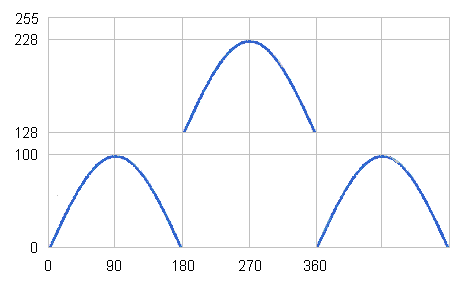
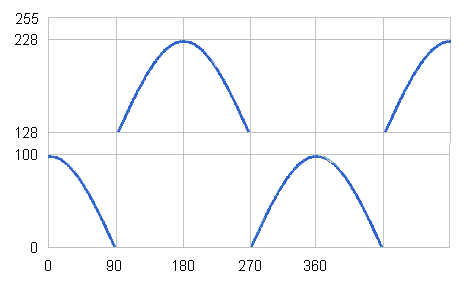
The COS function is similar to SIN but with a -90 degree phase shift. For input degree values of 0 to 90 the result will be 0 to 100, from 91 to 269 degrees the result is 128 to 228 indicating a negative result, then from 270 to 360 the result is 0 to 100.
SQR Function
The SQR (square root) function returns the whole integer square root, according to 10 iterations of a N-R formula, using a seed of value/2. This formula provides a fast and accurate result. Note that as the PICAXE chip only operates with whole integers, the result will be rounded down to the nearest whole value.
Let b1 = SQR 64 ; Answer b1 = 8INV (~) function
The INV or ~ (invert) function complements each bit in the value (ie each 0 is changed to a 1 and each 1 is changed to 0).
Let b1 = ~ %10100110 ; Answer b1 = %01011001
DCD and NCD functions
The DCD (decode) function gives a power-of-two result and is the equivalent to shifting a value of 1 to the left. The following two assignments are equivalent -
Let w1 = DCD b0
Let w1 = 1 << b0
If variable 'b0' held the value 3, the result would be 1 shifted left 3 binary digits, %1000 binary or 16 decimal, which is also 23.
The NCD (encode) function determines the highest power-of-two which is greater than a variable or constants's value. It also allows the highest bit set in a variable or constant's value to be determined.
Let w1 = NCD w0
If variable 'w0' held the value 123, the largest power-of-two value greater than 123 is 128 (27), so the variable 'w1' will be set to 7.
BINTOBCD and BCDTOBIN functions
The BINTOBCD function converts a value to binary coded decimal. Note that the maximum value that can be returned within a byte is 99, or 9999 within a word.
Let b1 = BINTOBCD 99 ; Answer b1 = %10011001=$99
The BCDTOBIN function converts a binary coded decimal value to normal binary.Let b1 = BCDTOBIN $99 ; Answer b1 = 99
REV operator
The REV(reverse) command reverses the order of the specified number of bits of a 16 bit number. Therefore to reverse the 8 bits of %10110000 (to %00001101) the command would be -
Let b1 = %10110000 REV 8
DIG operator
The DIG (digit) command returns the decimal value of a specified digit (0-4, right to left) of a 16 bit number. For examplee digit 0 of '67890' is 0 and digit 3 is '7' -
Let b1 = 67890 DIG 0 ; Answer b1 = 0
Let b1 = 67890 DIG 1 ; Answer b1 = 9
Let b1 = 67890 DIG 2 ; Answer b1 = 8
Let b1 = 67890 DIG 3 ; Answer b1 = 7
Let b1 = 67890 DIG 4 ; Answer b1 = 6
To return the ASCII value of the digit simply add string "0" to the digit value -Let b1 = b2 DIG 0 + "0"
NOB function (X2 only)
The NOB function counts the number of bits that are set.
Let b1 = NOB %10100111 ; Answer b1 = 5
ATAN function (X2 only)
The ATAN function provides an arctan function for angles between 0 and 45 degrees. This is useful, for example, for calculating robot direction paths.
As the arctan input is always a value between 0 and 1, a coding system is used to increase the accuracy when working with PICAXE whole integers. The value used by the atan function is actually 100 x the real atan value (e.g. 0.39 = 39)
Let b1 = ATAN 100 ; Answer b1 = 45
- Share:
-
- Print:
-

Play incrementing tone
Play a sound with increasing pitch (the value of b0). When the pitch is > 50, reset b0 back to 10 and start again.
- Code Example:
-
main:	inc b0			; increment b0
	sound B.7,(b0,50)	; make a sound
	if b0 > 50 then rest	; after 50 reset
	goto main		; loop back to start

rest:	let b0 = b0 max 10	; limit b0 back to 10 as 10 is the maximum value
	goto main 		; loop back to start
Copy Code Submit an Example
Using dirs and pins
This code uses let dirs to set two of the pins to outputs, then let pins to turn those two outputs high.
- Code Example:
-
main:	let dirs = %00000011	; switch pins 0 and 1 to outputs
	let pins = %00000011	; switch on outputs 0 and 1
Copy Code Submit an Example
Using the SIN function
This program shows the sine values for degrees 0 to 360 in 45 degree steps.
- Code Example:
-
#picaxe 28x2
#terminal 9600
for w0 = 0 to 360 step 45
  w1 = sin w0
  if w1 < 128 then
    bintoascii w1, b13,b12,b11
    sertxd( "SIN(", #w0, ")" ,9, "=  ", b13,".",b12,b11, cr, lf )
  else
    w1 = w1 - 128
    bintoascii w1, b13,b12,b11
    sertxd( "SIN(", #w0, ")" ,9, "= -", b13,".",b12,b11, cr, lf )
  end if
next
Copy Code Submit an Example
Using the COS function
This program shows the cosine values for degrees 0 to 360 in 45 degree steps.
- Code Example:
-
#picaxe 28x2
#terminal 9600
for w0 = 0 to 360 step 45
  w1 = cos w0
  if w1 < 128 then
    bintoascii w1, b13,b12,b11
    sertxd( "COS(", #w0, ")" ,9, "=  ", b13,".",b12,b11, cr, lf )
  else
    w1 = w1 - 128
    bintoascii w1, b13,b12,b11
    sertxd( "COS(", #w0, ")" ,9, "= -", b13,".",b12,b11, cr, lf )
  end if
next
Copy Code Submit an Example
Implementing DCD operator on the M2 series
This shows how the DCD unary operator can be implemented on M2 and other PICAXE chips.
- Code Example:
-
; Byte DCD - Equivalent of "b0 = DCD b2" where b2 is 0 To 7

lookup b2, ( 1, 2, 4, 8, 16, 32, 64, 128 ), b0

; Word DCD - Equivalent of "w0 = DCD b2" where b2 is 0 To 15

lookup b2, ( 1, 2, 4, 8, 16, 32, 64, 128, 256, 512, 1024, 2048, 4096, 8192, 16384, 32768 ), w0
Copy Code Submit an Example
Implementing NCD operator on the M2 series
This shows how the DCD unary operator can be implemented on M2 and other PICAXE chips.
- Code Example:
-
; Byte NCD - Equivalent of "b2 = NCD b0"

lookdown 1 ( bit7, bit6 ,bit5, bit4, bit3, bit2, bit1, bit0, 1 ), b2
b2 = 8 - b2

; Word NCD - Equivalent of "b2 = NCD w0"

lookdown 1, ( bit15, bit14, bit13, bit12, bit11, bit10, bit9, bit8, bit7, bit6 ,bit5, bit4, bit3, bit2, bit1, bit0, 1 ), b2
b2 = 16 - b2
Copy Code Submit an Example
Submit Your Own Code!
You must be logged in to submit code examples. Login now.